Online Course Syllabi
The UNC System Office Regulation on Publication of Academic Calendars, Grading Policies, and Related Materials (adopted December 19, 2025) and NC State’s Course Syllabus Regulation (revised February 3, 2026) require a syllabus to be available from NC State’s Class Search tool no later than one week prior to the beginning of the term. The instructions below provide information to schedulers on how to set up syllabus shells for entire courses and update syllabi for individual sections.
Additional online syllabi instructions for faculty can be found on the MyPack Portal User Guide website.
Academic experiences occurring outside of organized course sections and providing individual instruction in exchange for course credit, e.g. practicums, internships, independent research and dissertations, may not require a syllabus.
Set up Syllabi Shells for Courses
Follow one of the below navigations to set up syllabi shells for entire courses:
MyPack Portal > Curriculum Management > ‘Course Catalog’ menu heading > ‘Course Catalog’ menu item
or
MyPack Portal > Scheduling Work Center > ‘More Links of Interest’ menu heading > ‘Course Catalog’ menu item
- Search the course by “Subject Area” and “Catalog Number”

- On the “Offerings” tab, click the “Syllabus” button

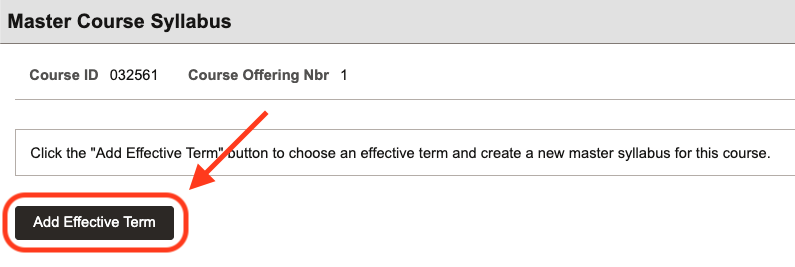
- In the “Master Course Syllabus” menu, click the “Add Effective Term” button
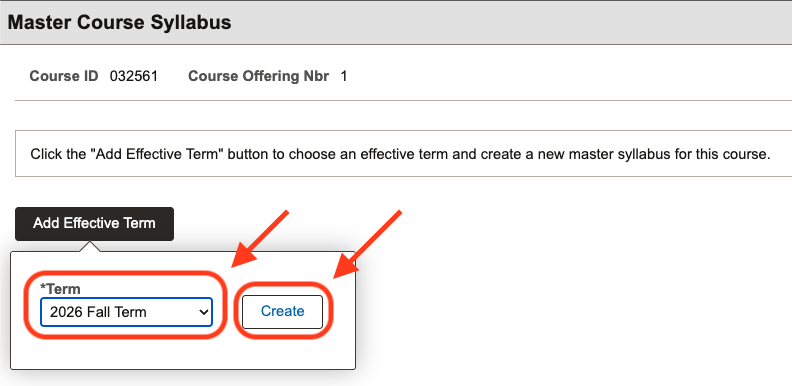
- In the pop-up menu under the “Term” prompt, select the desired effective term from the dropdown menu (example: 2026 Fall Term)
- Once a syllabus shell is created, it will be used for all sections, beginning with the most recent effective term, until a new shell is created with a new effective term.
- Click “Create”
- In the “Create Syllabus” pop-up menu, schedulers:
- Can not edit:
- Course name;
- Course prefix;
- Topic;
- Course description; and
- Course materials (automatically generated from NC State Bookstores data).
- Can edit (and toggle instructor editing access for *):
- Student Learning Outcomes;
- Student Performance Assessment; and
- Additional Required Cost-Bearing Course Materials
- Can not edit:
* Instructors can edit any items schedulers can if the “Editable by Instructor” toggle is toggled on. Instructors can not edit items that have been toggled off by schedulers.

The above screenshot depicts the “Editable by Instructor” toggle toggled on.
The below screenshot depicts the “Editable by Instructor” toggle toggled off.

- When content has been entered, click “Save” at the bottom of the “Create Syllabus” pop-up menu
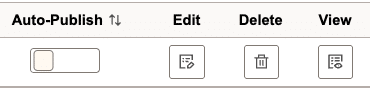
- Schedulers may now ‘Auto-Publish’, ‘Edit’, ‘Delete’, or ‘View’ the document.
- Toggling the “Auto-Publish” option will allow the syllabus to be posted when all syllabi are released to the publicly available Class Search tool.
- Click “Edit” to edit the document.
- Click “Delete” to remove the document from this course selection.
- Click “View” to preview the syllabus.
- Note: even after updating the syllabus at the catalog level, “Create New” still needs to be selected at the individual section level to pull all information forward.
Update Syllabi for Sections
Follow one of the below navigations to update syllabi for individual sections:
MyPack Portal > Curriculum Management > ‘Schedule of Classes’ menu heading > ‘Maintain Schedule of Classes’ menu item
or
MyPack Portal > Scheduling Work Center > ‘Maintain Schedule of Classes’ menu heading
- Search the course by “Term,” “Subject Area” and “Catalog Number”

- On the “Meetings” tab, click the “Online Syllabus” button

- In the “Online Class Syllabus” menu, click the “Create New” button

- In the “Create Syllabus” pop-up menu, schedulers:
- Can not edit:
- Course name;
- Course prefix;
- Topic;
- Course description; and
- Course materials (automatically generated from NC State Bookstores data).
- Can edit (and toggle instructor editing access in the syllabus shell for):
- Student Learning Outcomes;
- Student Performance Assessment; and
- Additional Required Cost-Bearing Course Materials
- Can not edit:
- When content has been entered, click “Save” at the bottom of the “Create Syllabus” pop-up menu
- Schedulers may now ‘Publish’, ‘Edit’, ‘Delete’, or ‘View’ the document.
- Toggling the “Published” option will allow the syllabus to be posted when all syllabi are released to the publicly available Class Search tool.
- Click “Edit” to edit the document.
- Click “Delete” to remove the document from this course selection.
- Click “View” to preview the syllabus.

Syllabi Changes and Additional Information
To ensure course continuity, any changes to instructional delivery, course structure, activity schedule, grading or assessment structure, or other aspects of the course after the start of the term should be communicated to all students in writing at the time of implementation. Where applicable, the Course Syllabus and the official course record in the Course Information Management (CIM) system should be updated.
Additional information can be found in the Standard Operating Procedure for Submitting Your Syllabus. Questions should be directed to the Syllabus Tool Questions and Feedback Form.